


One of the most common pieces of anti-phishing advice is to double-check the website’s domain name before providing your credentials. Typically, a fraudulent domain stands out to the trained eye, differing from the official URL by at least a few characters. Recently, however, we encountered a campaign where attackers instruct victims to input data directly into a legitimate, trusted corporate site: the Microsoft Identity Platform, which supports an OAuth 2.0 specification known as the Device Authorization Grant.
This specific protocol extension was designed to simplify the login experience for smart TVs, IoT hardware, printers, and other input-constrained devices that lack a full browser or keyboard. It allows users to use a nearby smartphone or PC for authorizing these devices to access their accounts. To complete the process, the user enters a one-time code on a designated authentication page. The Microsoft Identity Platform returns this code along with a link to enter it in response to a request to https://login.microsoftonline.com/{tenant}/oauth2/v2.0/devicecode; hence, an attack scenario exploiting this mechanism is called Device Code Phishing.
In this post, we break down how the Device Authorization Grant specification (also known as the Device Authorization Grant Flow or Device Code Flow) works, analyze real-world attacks leveraging this technology, and outline effective strategies to defend against Device Code Phishing.
Core steps of Device Authorization Grant
1. Requesting the authorization code
When a user launches an app on a client device, such as a streaming app on a Smart TV, the app detects that it is unauthenticated and sends a POST request to https://login.microsoftonline.com/{tenant}/oauth2/v2.0/devicecode. This request includes the client_id (the unique identifier of the app registered in Microsoft Entra ID / Azure AD) and the scope (the requested access permissions). In response, the application receives several parameters: device_code (a secret code for internal use), user_code (a short code displayed to the end-user), verification_uri (the login URL the user needs to visit), expires_in (the code’s lifespan), and interval (how frequently the app should poll the server).
2. Displaying the code to the user
The device displays both the user_code and the verification_uri to the user, instructing them to complete authentication on another device. For instance, a smart TV will display the code and URL — often rendering the verification_uri as a QR code — so the user can access it via their smartphone.
3. Entering the code and confirming access
By scanning the QR code with a smartphone camera or manually typing out the address, the user navigates to the verification_uri (such as https://microsoft.com/devicelogin) and enters the user_code.
4. Polling the server
The device (smart TV) begins polling the server to check the authorization status — essentially verifying whether the user has approved the access request. It does this by sending a POST request to the token endpoint: https://login.microsoftonline.com/{tenant}/oauth2/v2.0/token. The request passes the grant_type parameter with the value urn:ietf:params:oauth:grant-type:device_code, indicating the use of the Device Authorization Grant method. This signals to the authorization server exactly which authentication method is being used to request access tokens. The server waits for the user to enter the user_code on their secondary device and approve access to their resources or data. Until that approval happens, the server responds with an error code like authorization_pending (keep waiting) or slow_down (reduce the polling frequency).
5. Issuing access tokens
Once the user successfully approves the application’s request, the server responds to the application by issuing an access_token (to access the data), a refresh_token (to renew access later), an id_token (containing user profile details like name and email), along with several other service parameters.
6. Automatic access renewal
The device (our smart TV) uses the refresh_token to silently renew the access_token without requiring any further user interaction. When the current access_token expires (typically after 1 hour), the device automatically sends a token refresh request containing the refresh_token to the token endpoint. It then receives a fresh pair of access and refresh tokens, ensuring the user remains authenticated seamlessly.
While this workflow is truly convenient for input-constrained devices, attackers can abuse it to hijack user accounts and maintain persistent access for extended periods using the issued refresh_token. Let’s use a real-world example to break down this attack vector.
Analysis of a Device Code Phishing attack
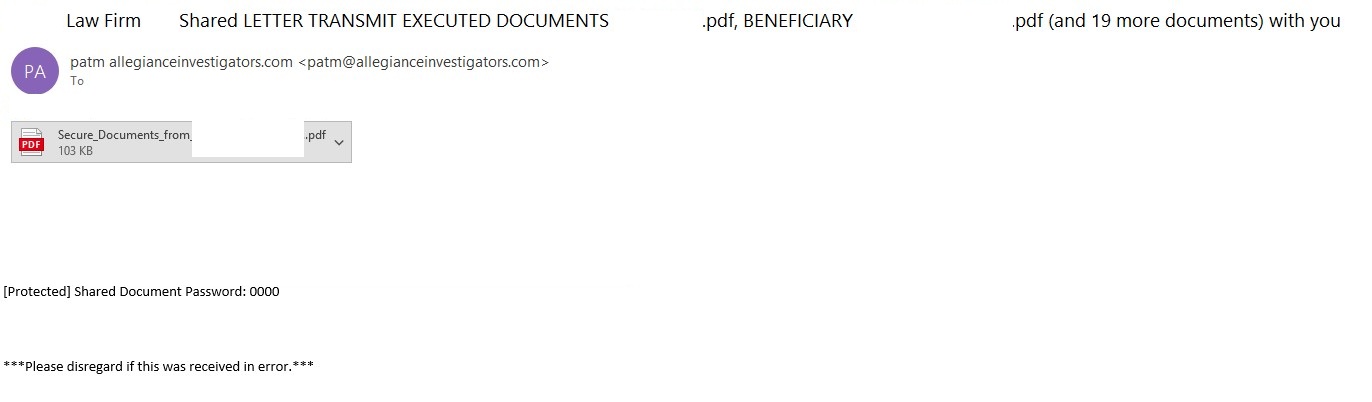
The phishing email
In a phishing campaign we observed spanning from early April to mid-May 2026, the initial email was styled as a notice from a law firm. Attached to the email was a password-protected PDF file.
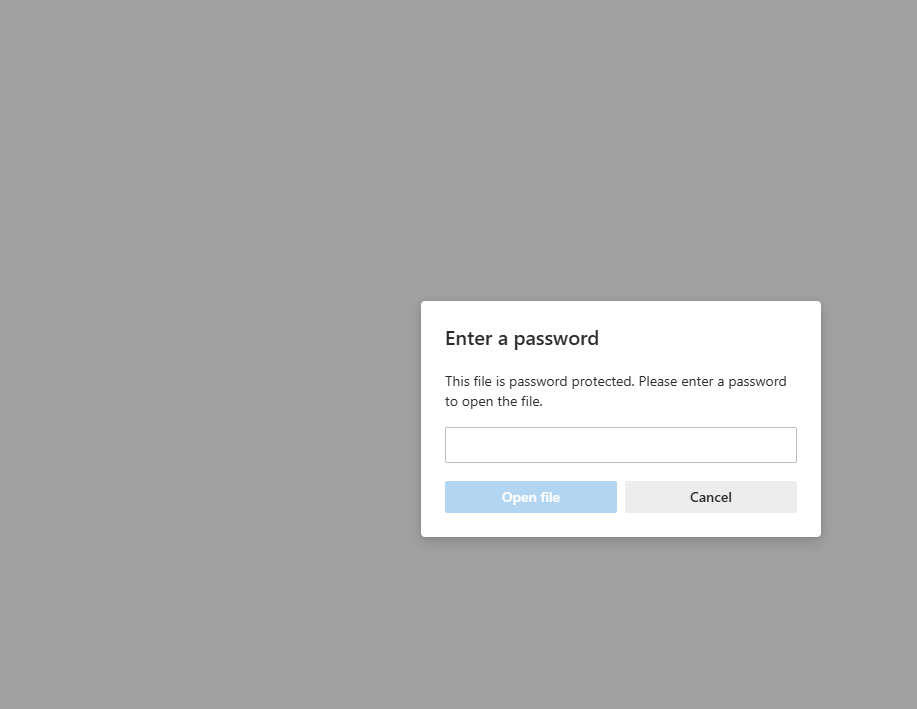
Once the victim opened the PDF and entered the password, they were presented with a landing page listing several documents. However, viewing these documents required clicking a provided link.
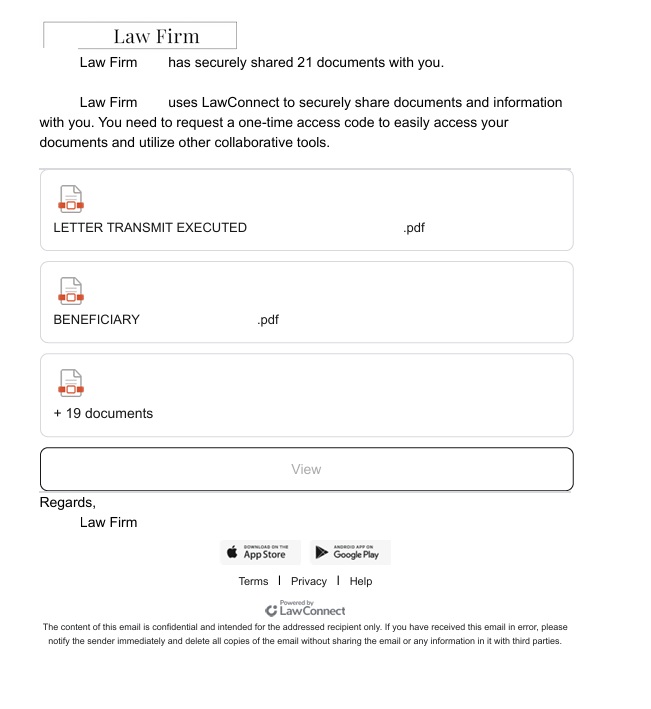
PDF file with a malicious link
A close look at the target URL reveals that instead of pointing to a typical, easily recognizable phishing domain, it actually points to a legitimate Microsoft address. However, the URL parameters are configured to redirect the user to a phishing resource.
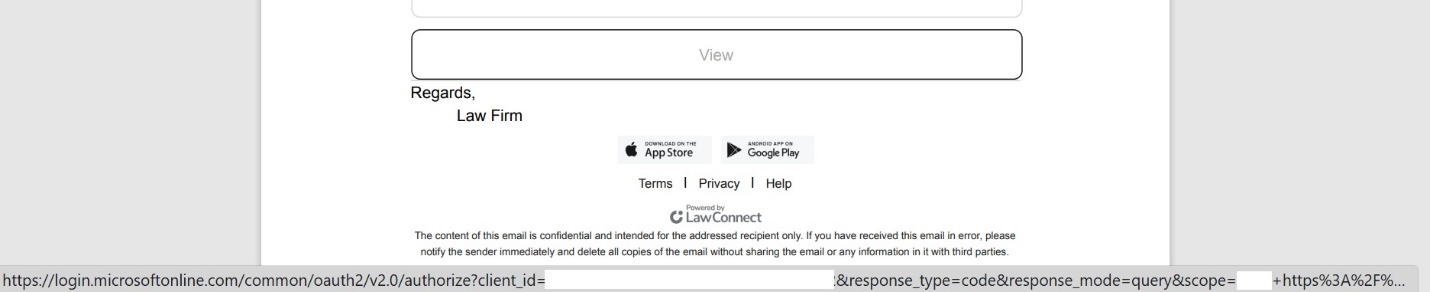
The link within the document does not keep the user on the Microsoft platform; instead, it immediately redirects them to a phishing page designed to mimic a corporate legal portal.
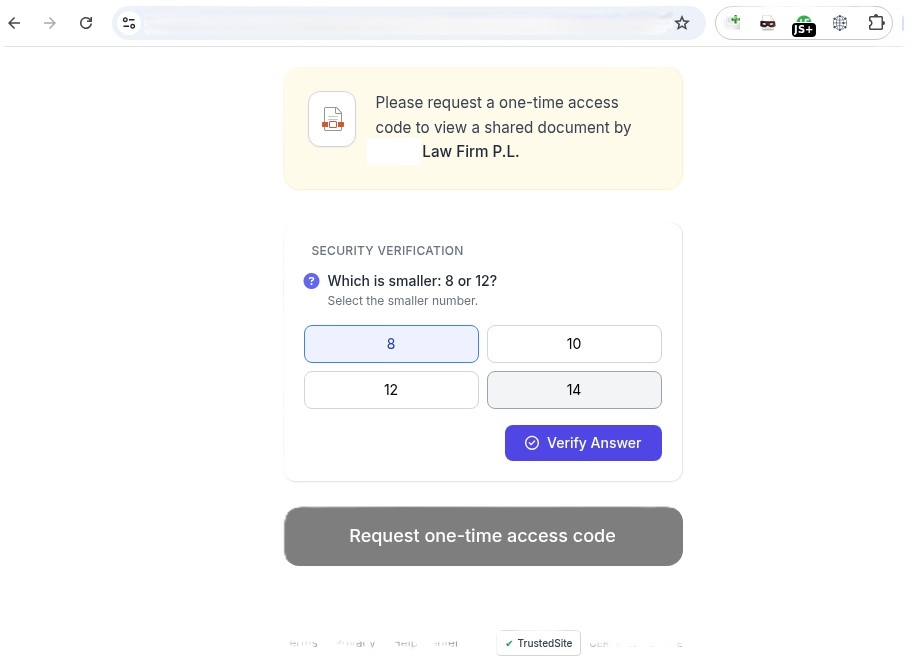
The phishing page
Interestingly, the landing page featured multiple CAPTCHAs, presumably deployed to filter out security crawlers. Once past these hurdles, the user was routed to a final page that instructed them to copy a one-time code. This code was the user_code that the attacker’s server-side application had already fetched by querying https://login.microsoftonline.com/{tenant}/oauth2/v2.0/devicecode, as detailed in the workflow above.
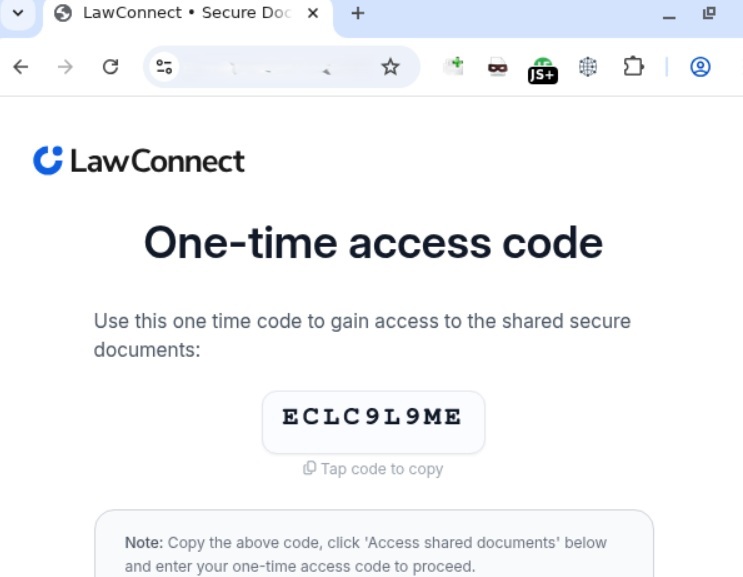
The one-time code
The one-time codeClicking the displayed one-time code automatically copied it to the clipboard while simultaneously redirecting the user to Microsoft’s actual, legitimate authentication page (verification_uri), where they were prompted to paste and enter the code.
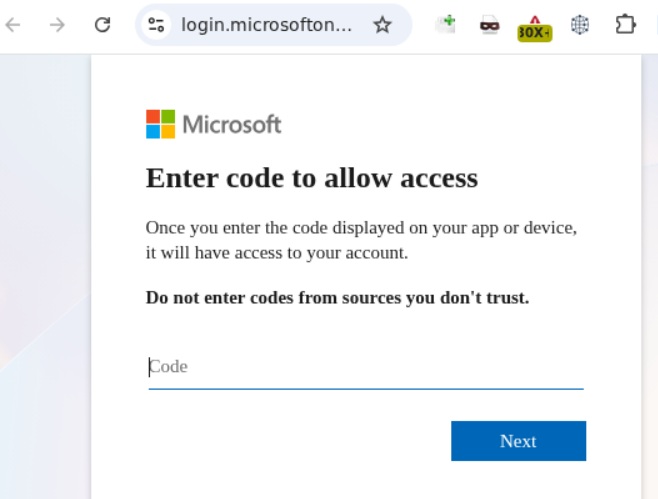
Official Microsoft authentication page
Once the user entered the code, it kicked off the Device Authorization Grant flow described earlier. The unsuspecting victim then completed the full MFA process directly on Microsoft’s official page. As soon as authentication succeeded, the attacker harvested the session’s access_token, refresh_token, and id_token. This enabled them to read and send emails from the victim’s mailbox, exfiltrate files from OneDrive, and access Teams conversations.
Adaptation of the attack method
This phishing campaign was limited in scope and spanned slightly more than a month. However, the threat actor continues to actively leverage this method, adapting it to target specific geographic regions. We’ve recently detected slightly modified Device Code Phishing campaigns shifting their focus toward users in Brazil, among others.
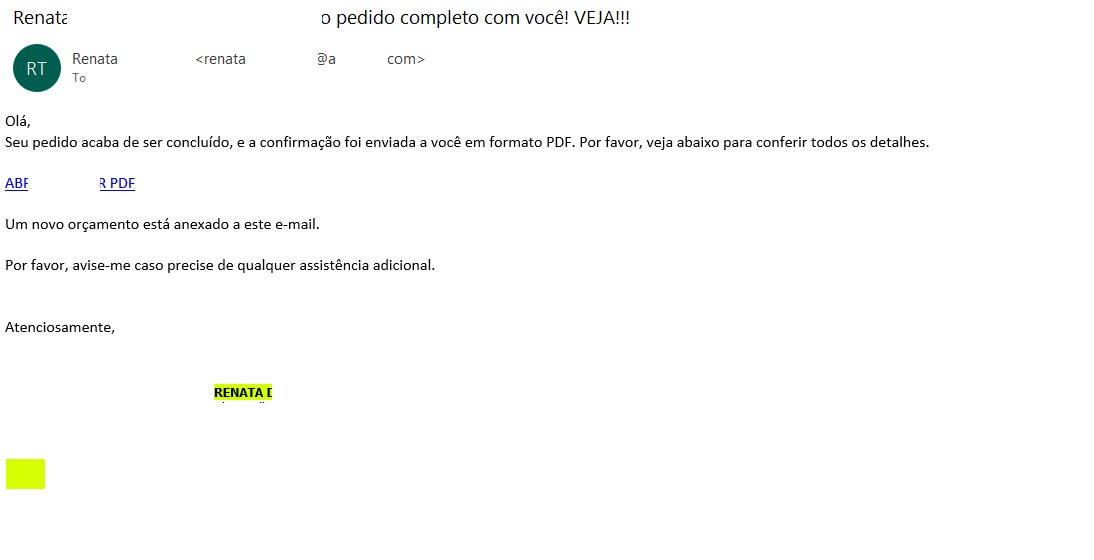
The Brazilian phishing variant
“Hello!
Your order has just been processed, and the confirmation has been sent to you in PDF format. Please see the details below.
OPEN / DOWNLOAD PDF
A new quote is attached to this email.
Please let me know if you need any further assistance.”
Unlike the previous campaign, this email did not include a malicious PDF attachment. Instead, it embedded a link pointing to cacoo.com, a legitimate online diagramming platform owned by Nulab. Just as before, this trusted domain served as an open redirect to steer the user toward the phishing infrastructure.
The proxy link routes through the legitimate Cacoo.com domain before redirecting to the phishing site
Translated from Portuguese:Request confirmation
Status Code = Success
DOWNLOAD OR VIEW THE DOCUMENT
Important note: Log in to the account that received this message to securely authenticate the document.
Clicking the link routed the user back to the familiar landing page displaying the one-time code.
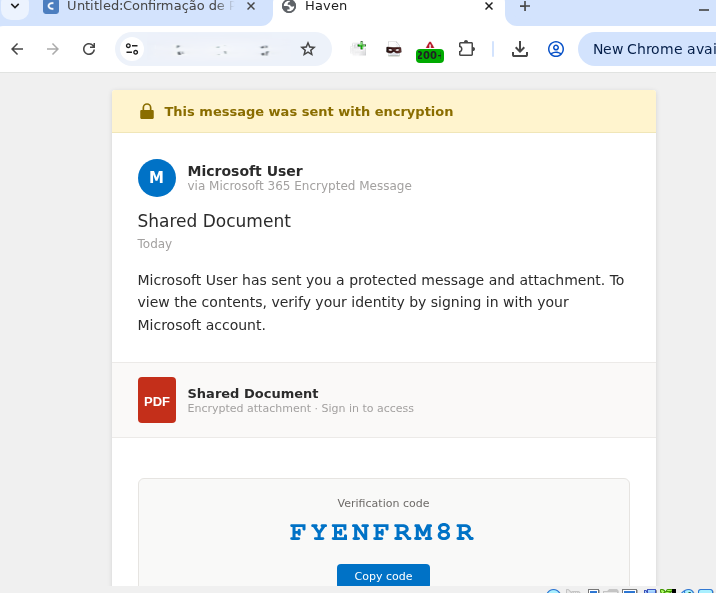
Landing page displaying the code
From there, the potential victim was once again redirected to the official Microsoft portal to complete the Device Authorization Grant authentication process.
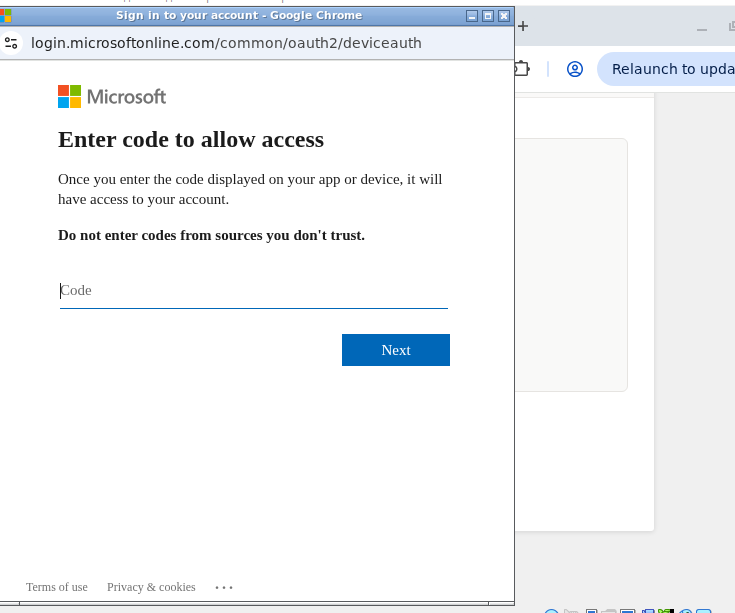
Official Microsoft page prompting for the user code
How to defend against Device Code Phishing attacks
As our research demonstrates, threat actors don’t always rely on harvesting credentials or deploying malware to access sensitive data — they can just as easily weaponize legitimate tools. Therefore, users must exercise vigilance not only when visiting suspicious sites, but also when navigating official platforms like Microsoft or Cacoo.com.
Recommendations for users
- If you did not personally initiate a login request on an external device using the Microsoft Device Authorization Grant, do not approve the authorization request.
- Never enter an authorization code received via unexpected emails or messages, even if the provided link points directly to an official Microsoft domain.
- Threat actors frequently leverage open redirects on legitimate domains, appending parameters like
redirect_uri,return_url, or next after the question mark (?) to point to a malicious destination. Before clicking any link, hover your cursor over it to inspect both the primary domain and any suspicious redirect parameters. Once the page loads, verify that the final URL actually matches the expected asset — this is the absolute minimum requirement before entering corporate credentials.
We strongly advise enterprise teams to evaluate the business necessity of the Device Code Flow within their corporate infrastructure. If this authentication mechanism is not required for daily operations, it should be disabled globally via Conditional Access policies within Microsoft Entra ID. Additionally, security teams should set up dedicated monitoring for DeviceCodeSignIn events, strictly e nforce device compliance states, and configure alerts for anomalous sign-in behavior originating from unusual locations.
To establish a comprehensive defense against Device Code Phishing attacks, organizations should deploy robust email security solutions capable of securing both corporate and personal messages.