
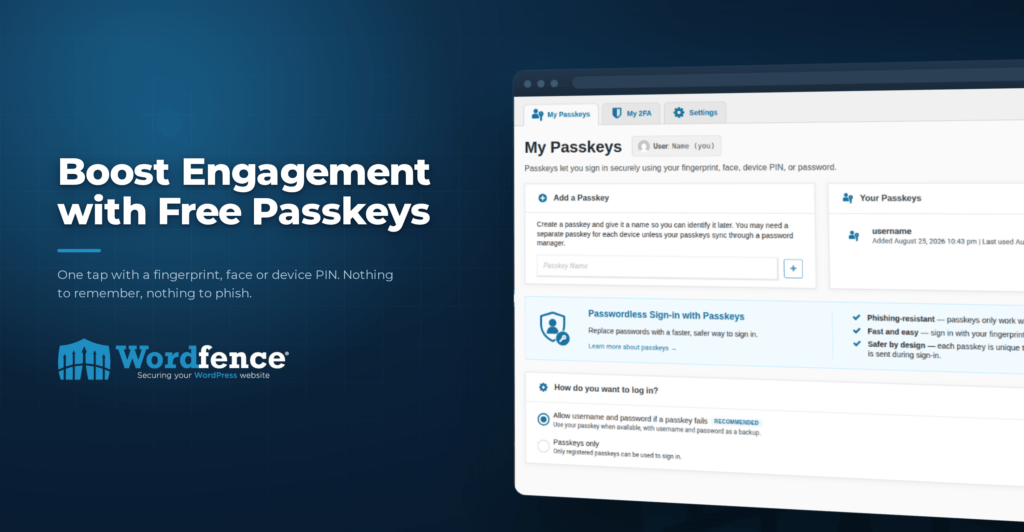
Imagine you can sign in with one click. Now imagine all the users on your WooCommerce store or WordPress powered website can sign in with one click. Firstly it makes your life a lot easier. But more importantly, you’ve removed friction from users logging in to make purchases, to engage in your forums, and to engage with your website. When you’re running at scale, even a small friction reduction yields large dividends.
Wordfence 9 introduces passkeys, and passkeys provide a huge friction reduction because your user no longer has to remember their password or retrieve it from a password manager and copy/paste. They can simply sign in with a single click. And the friction is even less on mobile with fingerprint or facial recognition enabled passkeys.
Let’s be honest: Security almost always adds friction. From having to login, to using 2FA, to password changes, to basic security hygiene. By adding security controls, security practitioners like us generally add friction to your daily life, and to your users. Which is why it makes me very happy when we launch a feature that removes friction. And weirdly, the more friction you remove, the more secure it is. What I mean by that is, if you disable the ability to sign in using a password, and only use passkeys, you become less vulnerable to phishing attempts.
Passkeys have historically been a feature that other WordPress security plugins have charged for. Our overarching philosophy at Wordfence for how we decide to charge for something is: if it costs us money to provide then we feel OK about sharing that cost with our customers. Passkeys are free for us to provide and are simply an algorithmic implementation, and so we feel pretty good about being able to make it completely free. I’m also very proud of what our team accomplished with the implementation, because it’s rock solid and gives you the option to have multiple passkeys across multiple devices, reducing the likelihood of you locking yourself out.
Enable passkeys with the Free or Paid version of Wordfence today, and promote it to your users to immediately reduce friction and boost site engagement.
Mark Maunder — Wordfence Founder & CEO
How to Get Started With Passkeys in Wordfence
Passkeys are available in both the free and paid versions of Wordfence, and take about a minute to enable.
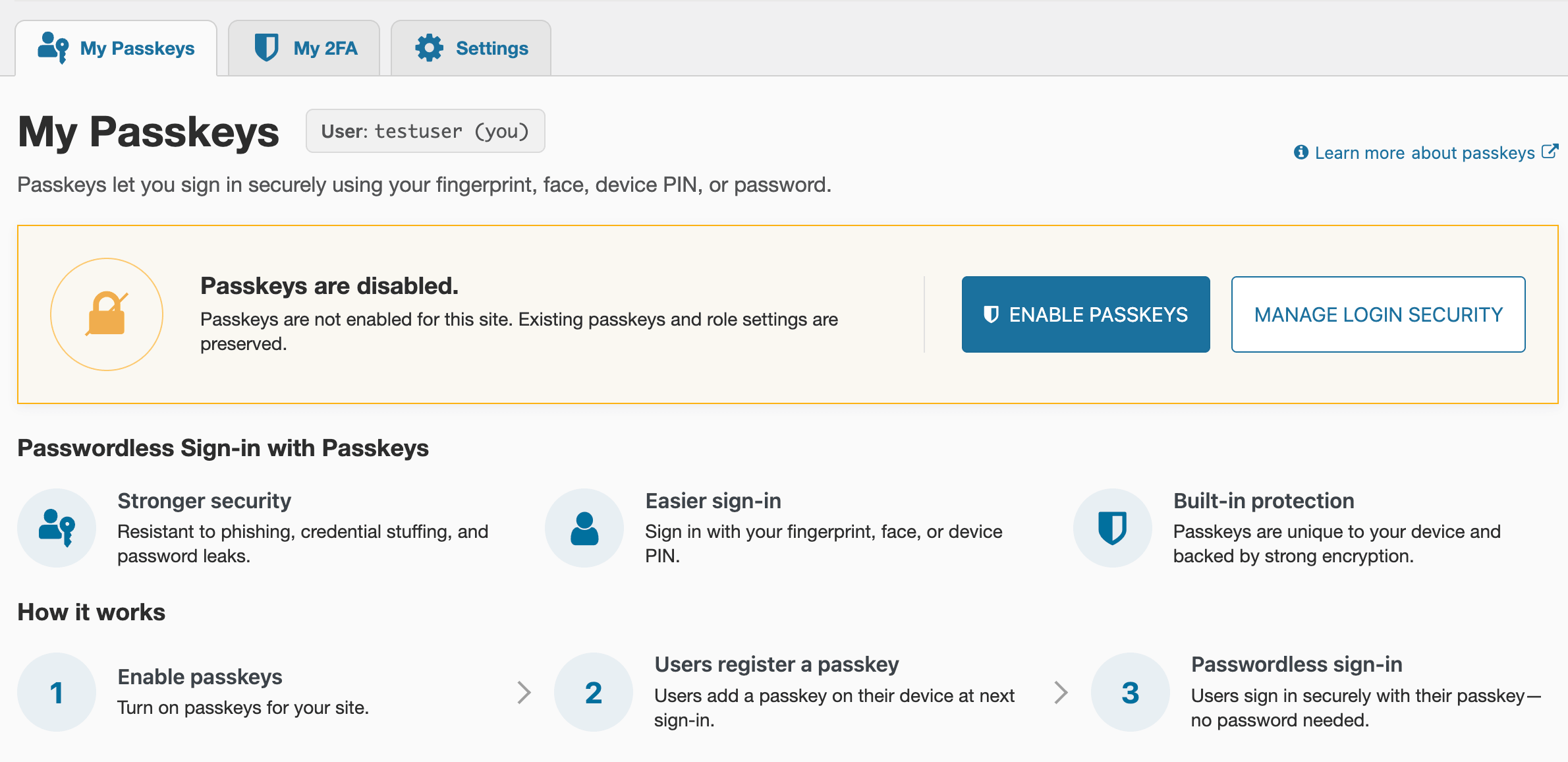
1. Open Login Security
Go to Wordfence → Login Security. If passkeys are not enabled yet, you will see the option to turn them on, along with a summary of how they work.
Note: You must have the right permissions, typically users assigned the admin role, to edit Login Security Settings.
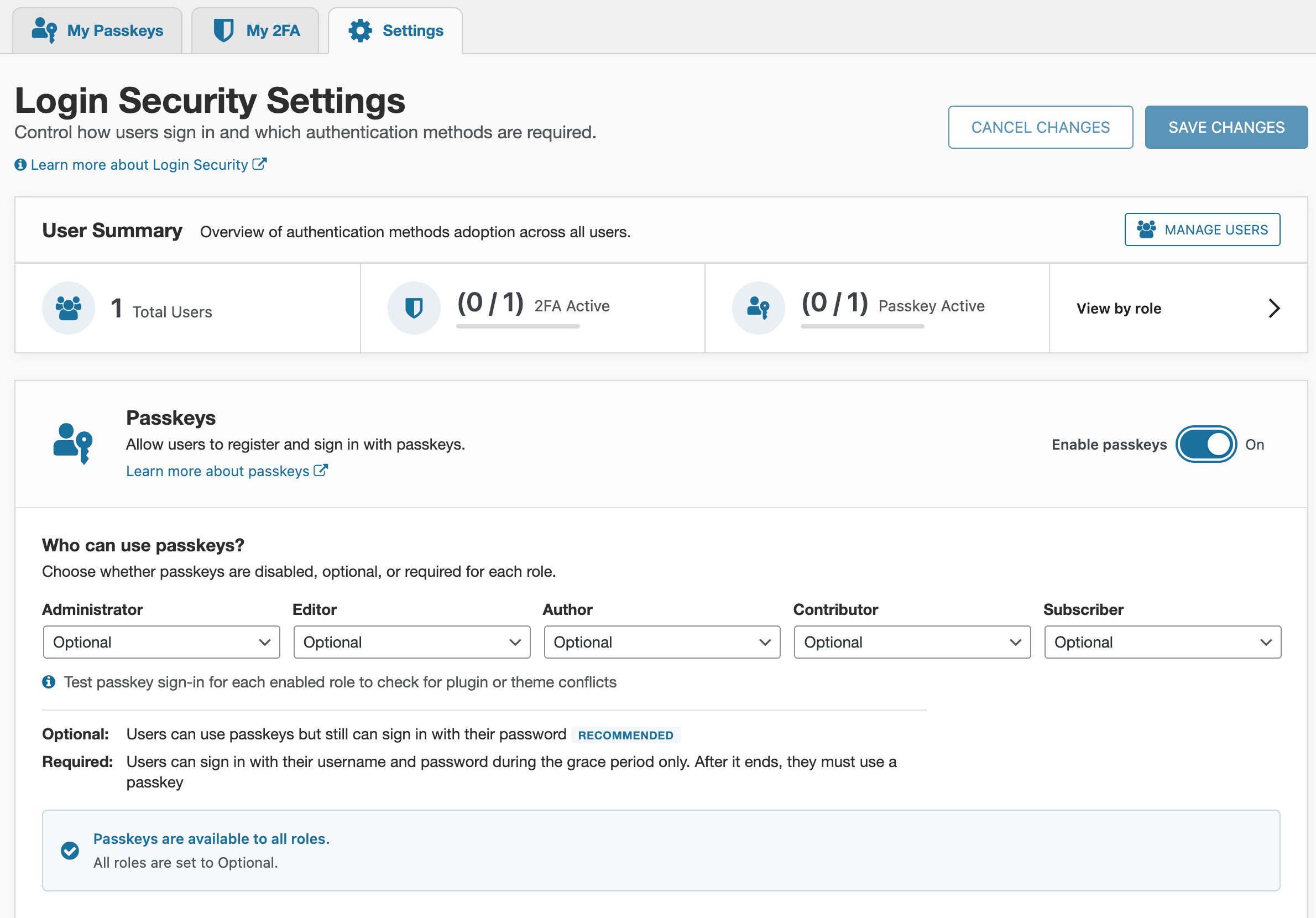
2. Enable passkeys and choose who can use them
On the Settings tab, switch Enable passkeys on. Once enabled, every role defaults to Optional, which means users can register a passkey but can still sign in with their password. Setting a role to Required is what disables password sign-in for that role, which is the stronger anti-phishing position.
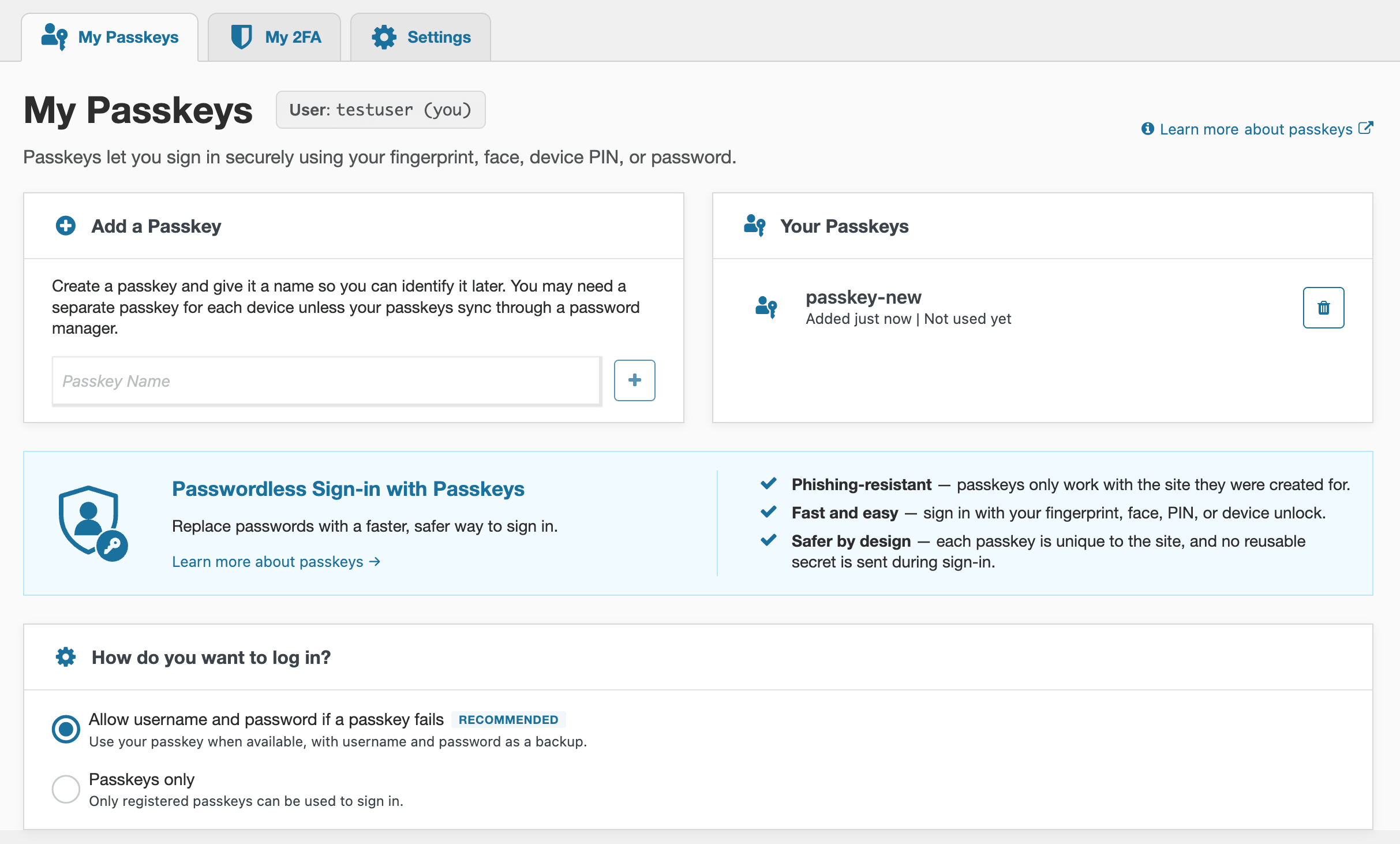
3. Add your first passkey
On the My Passkeys tab, give the passkey a name and select the plus sign to add it. Your device will ask for a fingerprint, a face scan, a PIN, or you can use a password manager. You can register a passkey on each device you use, so losing one does not lock you out.
The same screen is where you choose whether a password stays available as a backup, or whether the account signs in with Passkeys only. Before signing out of your site, be sure to test your passkeys if you have opted for Passkeys only.
4. Sign in with one click
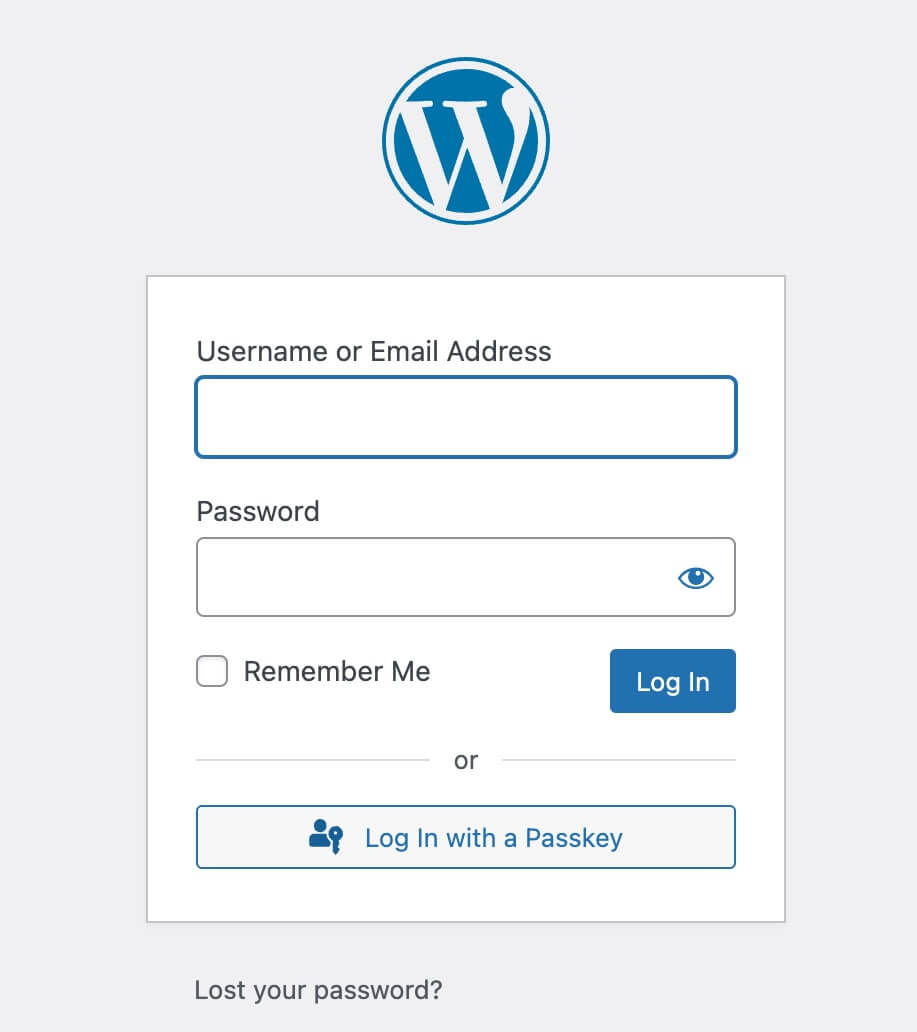
From then on, the WordPress login screen offers Log In with a Passkey. No password to remember, retrieve, or type (this is why passkeys enable what is referred to as “passwordless login”).
Passkeys strengthen one layer of your site’s security, while increasing convenience and reducing friction for website users and admins.
Wordfence is designed for defense in depth by giving you a layered approach to security with our range of features. Passkeys protect the login layer by removing the password an attacker would otherwise try to steal, phish or reuse.
Passkeys are available for free in the Wordfence plugin — enable them today to add a new layer of security to your WordPress sites.
The post Boost Engagement with Free Passkeys by Wordfence appeared first on Wordfence.